Share & publish your work
The platform separates two very different things you might want to do with a model, experiment or study you have saved:
| Share (peer-to-peer) | Publish (community) | |
|---|---|---|
| Who can see it | Only the specific people you name | Everyone signed in |
| Where it appears | Their Shared with me page | The community gallery and the Knowledge Graph |
| Takes effect | Instantly | Only after review |
| Review needed | No | Yes — automated validation and a human reviewer |
| Good for | Collaboration, getting feedback, handing a copy to a coworker | Contributing curated, citable content to everyone |
You can do both, independently: share a draft with a colleague while you work on it, and later submit that same element for publication.
Everything below is managed from My Models (/my/models).
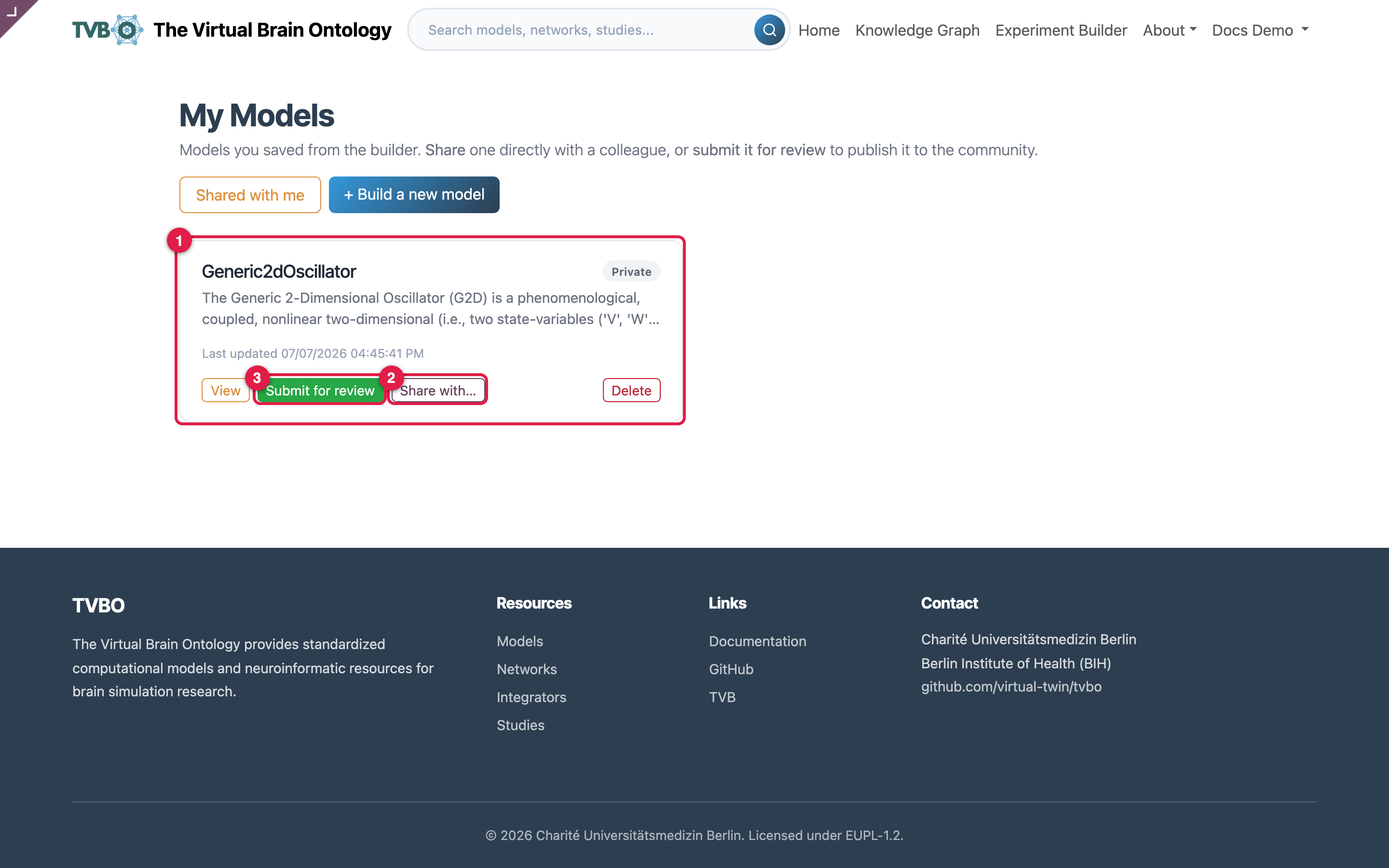
Share directly with a colleague
Use Share with… on any saved element and enter a colleague's account login or email. They get read access immediately — the element shows up on their Shared with me page and they can open and load it, even while it is still a private draft. Sharing this way does not make anything public and needs no review.
Remove a collaborator any time with the × next to their name. Anything shared with you shows up under Shared with me.
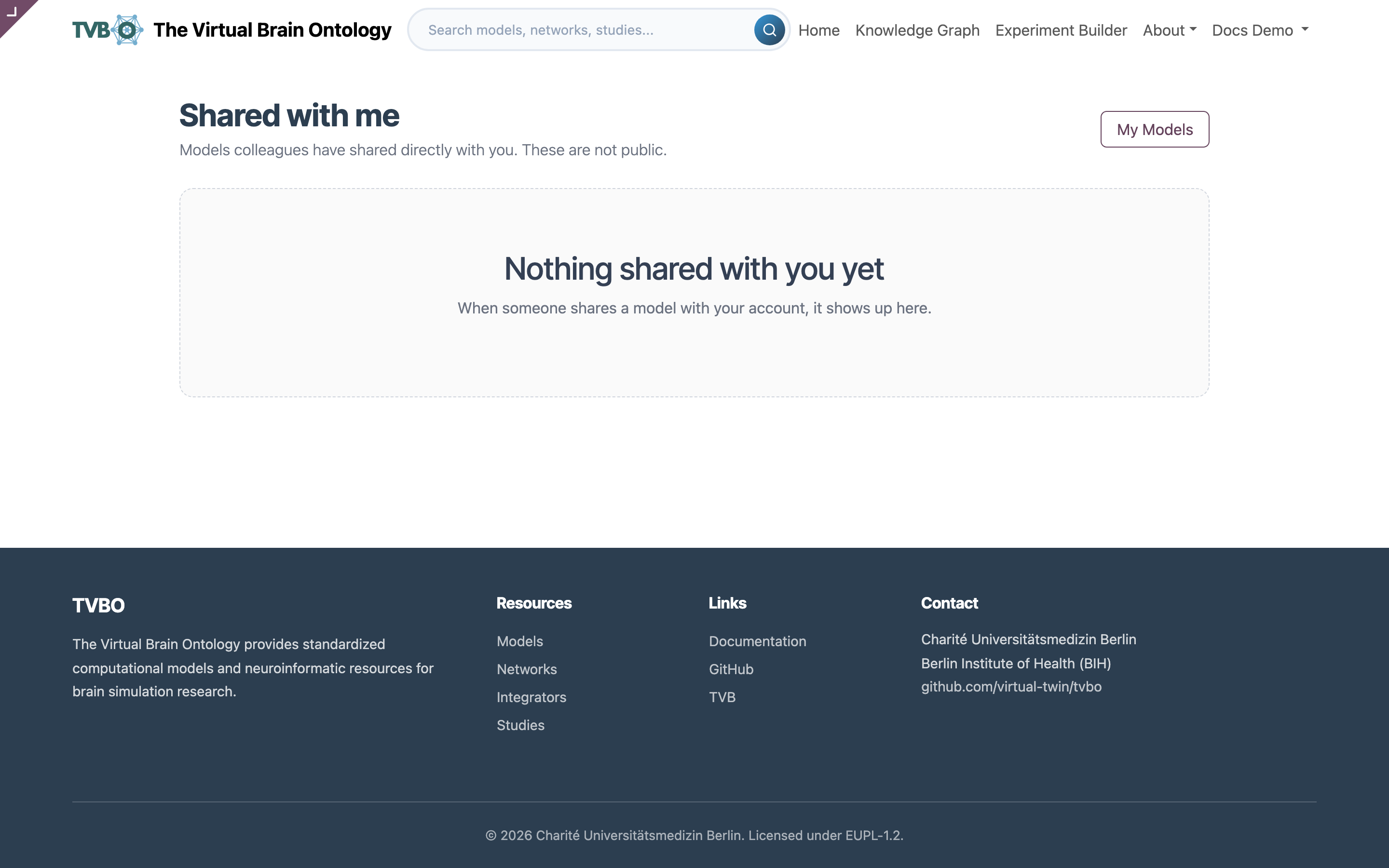
Sharing is a copy grant, not co-editing
A collaborator can view and load the element; they do not edit your copy. To hand over an editable version, they load it and save their own.
Publish to the community
Publishing puts your element in front of everyone, so it goes through a short, gated workflow instead of a one-click switch. This keeps the community gallery and the Knowledge Graph trustworthy.
The lifecycle
Draft  ──Submit──▶  (automated technical validation)
                         │ passes                    │ fails
                         ▼                            ▼
                    In review   ◀── resubmit ──  stays Draft (issues shown)
                     │      │
              approve│      │request changes
                     ▼      ▼
Published Changes requested ──revise & resubmit──▶ …| State | What it means |
|---|---|
| Draft | Private to you (and anyone you shared it with). Not public. |
| In review | Passed automated validation; a reviewer is looking at it. |
| Changes requested | A reviewer sent it back with feedback. Fix it and resubmit. |
| Published | Approved and visible to everyone. |
1. Submit for review
Click Submit for review. The platform first runs an automated technical validation (below). If anything fails, you stay in Draft and the exact issues are listed so you can fix them — a reviewer is never bothered with content that doesn't pass the machine checks. If it passes, the element moves to In review and lands in the reviewers' queue.
2. Automated technical validation
Every submission must pass these checks before a human sees it:
- Metadata completeness — a name/label, a description (at least a sentence),
and, for a study, a citation key or DOI.
- Schema validity — the element validates cleanly against the TVBO schema (the
same validation the YAML export uses).
- Reference integrity — everything it builds on (model, connectome, coupling,
integrator, observation…) is either public or your own. You cannot publish an experiment that secretly depends on someone else's private content.
- Runnable smoke-test — for experiments, the platform attempts a short trial
run. If the review node has no simulation runtime installed, this check is recorded as skipped and the reviewer runs it manually.
You can re-run these checks any time by submitting again.
3. Peer review
A member of the review team (internal staff) opens your submission, sees the validation report and the full content, and either:
- Approves it — it becomes Published immediately and appears in the gallery
and Knowledge Graph; or
- Requests changes — it returns to you as Changes requested with a note
explaining what to fix. Revise and click Submit for review again.
You are notified of the decision, and the reviewer's note appears right on the element's card in My Models.
4. After publishing
Published elements are visible to everyone signed in and are loadable by id through the API. If you need to take something down or revise it, click Unpublish (or Withdraw while still in review) to return it to a private draft; re-publishing goes through review again.
Publish from Python
Pushing from the REST API follows the same rules. A push always lands as a private draft; asking to publish requests review rather than flipping it live:
from tvbo.platform import TVBOPlatform

tvbo = TVBOPlatform(base_url="https://tvbo.charite.de", api_key="tvbo_…")

# Private draft (default)
tvbo.push_experiment(exp)

# Request publication: runs validation, then queues for peer review
tvbo.push_experiment(exp, visibility="shared")

# Peer-to-peer share with named colleagues (instant, no review)
tvbo.push_experiment(exp, share_with=["a.colleague@charite.de"])
The response reports the resulting publication_state (draft / in_review / published); if validation failed, it includes the list of issues to fix.
“Shared” now means “submitted for publication”
Older clients used visibility="shared" to publish instantly. It now requests publication (validation + review). To simply give a colleague access without publishing, use share_with instead.